Kiosk Interface in Odoo 19 POS: Serving Customers Faster

Last Updated on October 6, 2025
4 Min read
Table of Contents
Introduction
The retail and hospitality industries are increasingly shifting towards self-service kiosks to improve customer experience and reduce checkout times. With Odoo 19, the Kiosk Interface in POS has been enhanced to streamline operations, enabling customers to place orders, make payments, and collect receipts independently.
This blog explores how the kiosk mode works, its benefits, and how you can implement it in your business.
What is the Kiosk Interface in Odoo 19 POS?
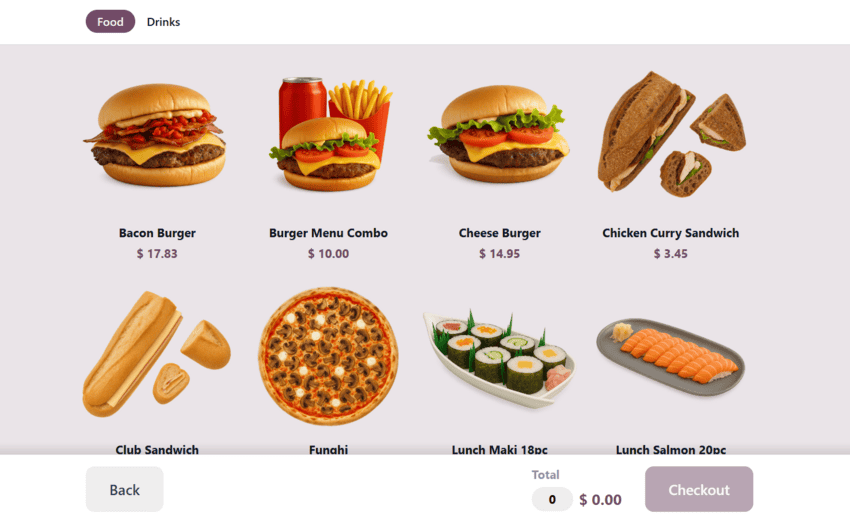
The Kiosk Interface transforms Odoo’s POS system into a self-service mode, where customers can interact directly with a touchscreen terminal or tablet. It eliminates the need for cashier intervention in basic transactions, giving customers control and speeding up service.
Key Benefits of Using the Kiosk Mode
- Faster Order Processing – Customers browse and order without waiting in line.
- Reduced Staffing Costs – Staff can focus on customer assistance instead of manual billing.
- Error Reduction – Orders placed by customers themselves reduce miscommunication.
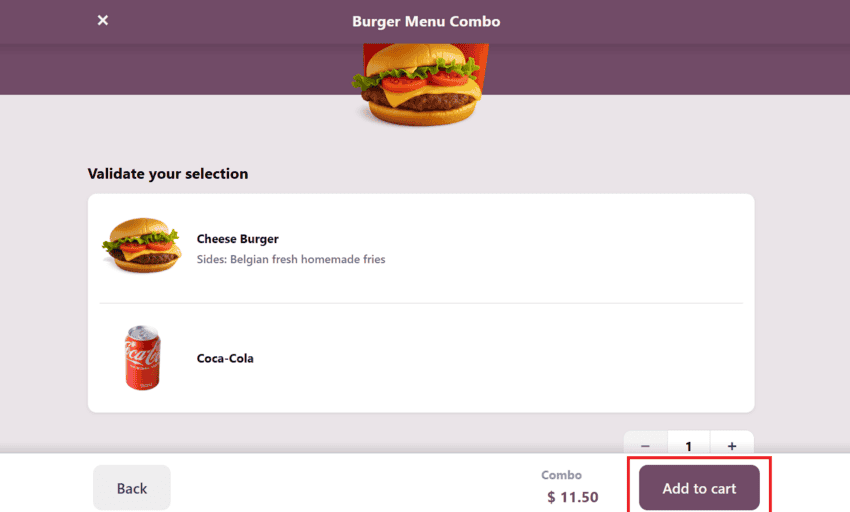
- Upselling Opportunities – Suggested items can be displayed during the ordering process.
Use Cases Across Industries
- Restaurants & Cafés: Self-ordering kiosks for dine-in or takeaway.
- Retail Stores: Customers scanning and purchasing products directly.
- Cinemas & Entertainment: Ticket booking kiosks.
- Healthcare Clinics: Patients checking in at reception.
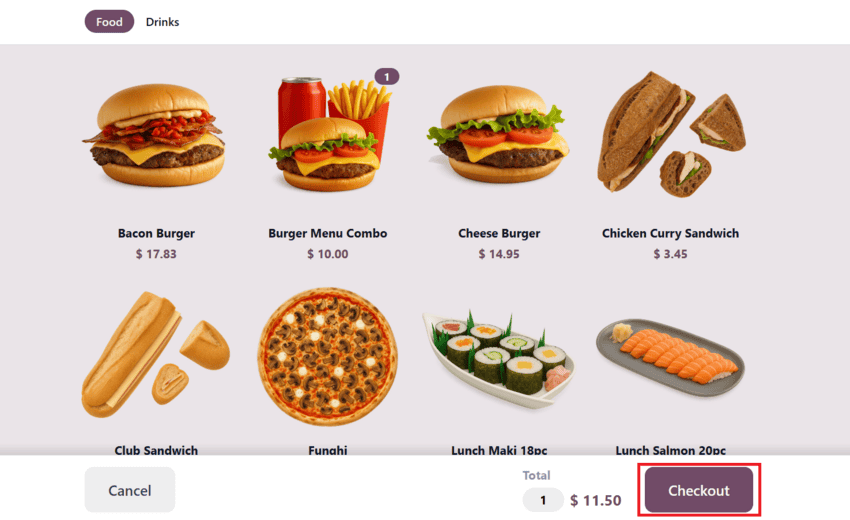
How the Kiosk Interface Enhances Customer Experience
- Self-service convenience: Customers feel empowered by managing their own orders.
- Shorter queues: Less congestion at billing counters.
- Personalization: Digital kiosks can recommend products based on customer preferences.
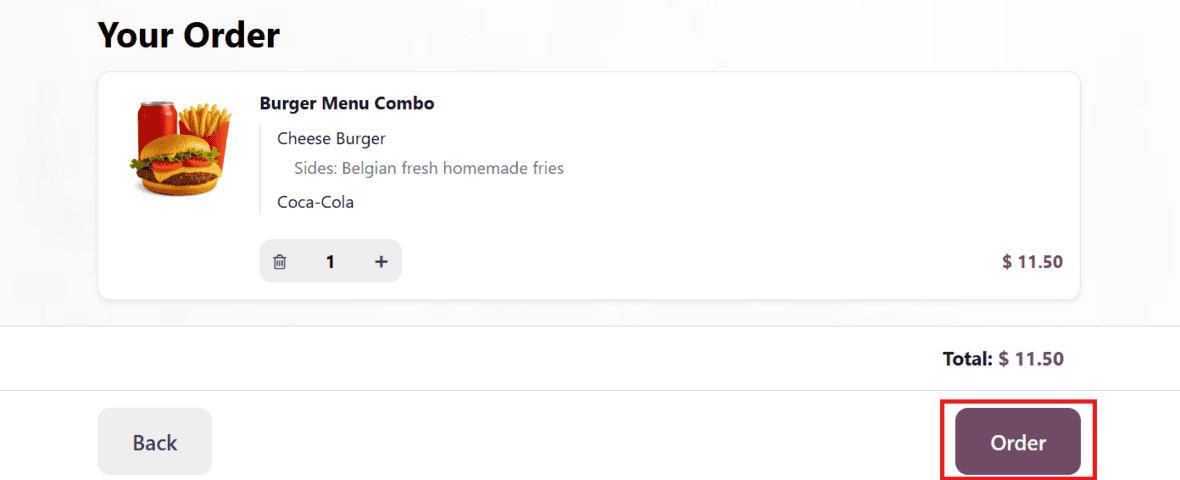
Step-by-Step Setup in Odoo 19 POS
- Activate POS App in your Odoo database.
- Go to Point of Sale → Configuration → Settings.
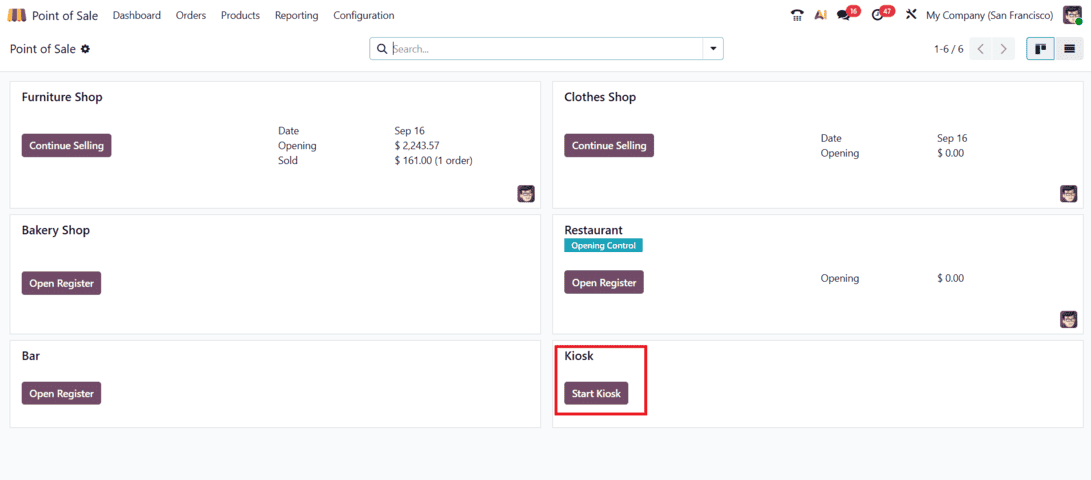
- Enable the Kiosk Mode option.
- Configure devices like printers, barcode scanners, or tablets.
- Launch POS and switch to Kiosk Mode.
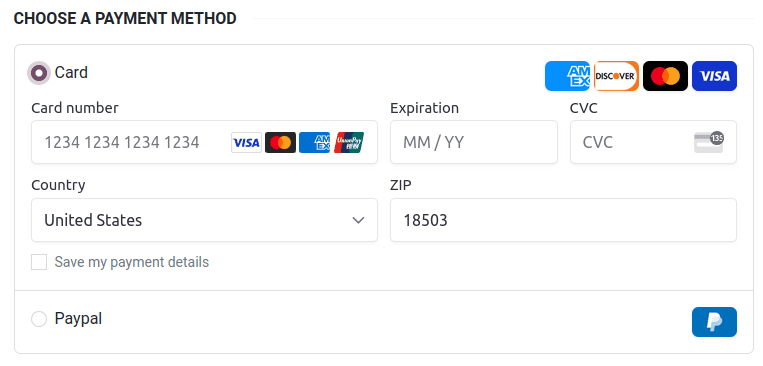
Best Practices for Implementation
- Use Touch-Friendly Devices: Ensure large-screen tablets or kiosks for ease of navigation.
- Place Strategically: Install kiosks in high-traffic areas for maximum usage.
- Train Customers: Provide quick guidance on first-time usage.
- Monitor & Update: Regularly check performance and optimize menus.
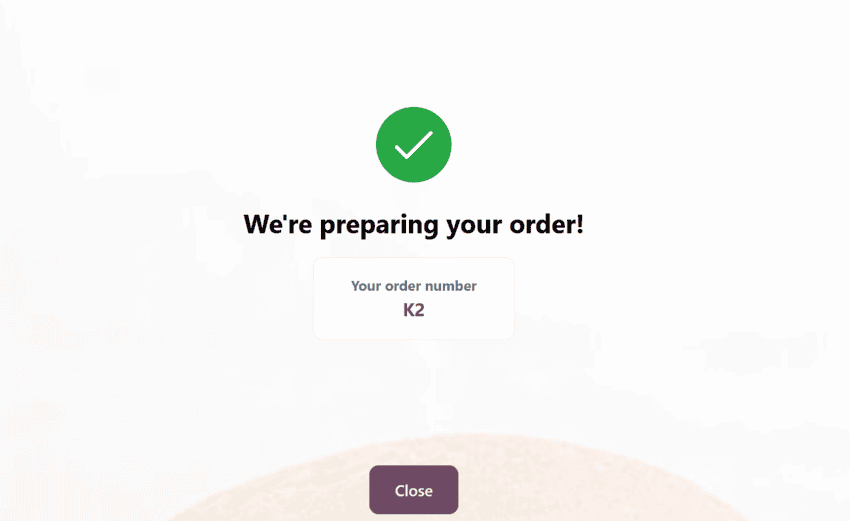
Conclusion
The Kiosk Interface in Odoo 19 POS is a game changer for businesses looking to provide faster service, reduce operational costs, and improve customer satisfaction. From retail to restaurants, kiosk mode is the future of self-service interactions.
If you’re planning to upgrade your POS system with Odoo 19 Kiosk Mode, now is the perfect time to implement it.
👉 Ready to empower your business with Odoo 19 POS Kiosk Interface? Contact Wan Buffer Services today and explore tailored solutions.
FAQs
-
Can kiosk mode be used alongside normal POS counters?
Yes, Odoo 19 allows hybrid setups where you can run both cashier-assisted POS and kiosk terminals simultaneously.
-
Is kiosk mode customizable in Odoo 19?
Absolutely! You can customize the product display, categories, and even suggest upsell items.
-
Does kiosk mode support multiple payment options?
Yes, customers can pay via cash, cards, QR codes, or integrated payment gateways.
